Workflows are now live in TalentHR. They automate the repetitive parts of people operations — onboarding steps, offboarding checklists, scheduled reminders, training assignments — by letting you define a process once and have TalentHR run it automatically whenever the right event happens.
This article explains how workflows work, and then gives you five complete configurations you can copy and adjust to your business needs as a starting point.
How a workflow runs
A workflow has four parts: a trigger, actions, scheduling, and the people it applies to.
The trigger is an employee event that starts the workflow. There are six:
- A new hire is added
- An employee is terminated
- An employee field is updated
- An employee's birthday
- A work anniversary
- An employee date is reached
The employee date trigger is the most flexible of the six. Any date stored on a profile — probation end, certification renewal, contract expiry — can start a workflow, which extends Workflows well beyond onboarding into the rest of the employee lifecycle. And the termination trigger means offboarding is just as automatable as onboarding.
The actions are what the workflow does. There are four types: send an email, create a task, create a membership task, or assign training. One workflow can combine all of them. Emails can go to the employee, their manager, another employee, or a custom address, and support dynamic placeholders like so every message is personalized without you touching it. Tasks carry a title, assignee, instructions, due date, and reminders. Membership tasks are tied to a specific subscription or benefit — software seats, memberships — which makes them quietly valuable in offboarding, where a forgotten subscription comes with a monthly invoice. Training assignments require an active TalentLMS integration and take a learning course plus a due date.
Actions run in sequence by default, but two rule types change the flow. A parallel rule runs up to three actions simultaneously, for example emailing the new hire while IT receives an equipment task, with neither waiting on the other. A yes/no condition branches the workflow based on employee data, so one workflow can handle different situations instead of you maintaining two near-identical copies that drift apart over time.
The scheduling is set per action, and it's more precise than "X days after the trigger." Each action is timed against a reference date, and there are three: the trigger date, the hire date, and the action's own due date.
The distinction between the first two is worth understanding properly. The trigger date is the moment the workflow starts — when the hire was added, the day of the birthday, the day someone was terminated. The hire date is the employee's actual start date, and it can be weeks after the person was added to TalentHR. That gap is exactly why hire-date scheduling exists: the workflow fires the moment you add the hire, but the actions land relative to day one. Send the welcome email 5 days before the hire date. Assign onboarding training 7 days before. Create the IT setup task 1 day before. Add the person a week or a quarter in advance — the timing comes out right either way.
The third reference date, the due date, is what reminders can hang off: alert HR 3 days before a task is due, notify a manager a week before a training expires. The follow-up is built into the action itself, which is how things stop slipping.
There's one more scheduling control: some actions can block the next action until this one is completed. When it's on, the workflow pauses until the action is actually done. Use it when sequence is the point — don't provision access until the paperwork is in, don't close out offboarding until the equipment is returned.
The scope defines who the workflow applies to: all employees, or specific groups by location, division, department, job title, or employment status — or individual employees. A workflow scoped to your Berlin office only ever triggers for new hires or employees in Berlin. If onboarding differs between locations, you build one workflow per location and scope each accordingly.
Building a workflow: manually or with a simple prompt
There are two ways to create a workflow.
Building manually, you select the trigger, define who it applies to, and add actions and rules one by one, configuring each as you go.
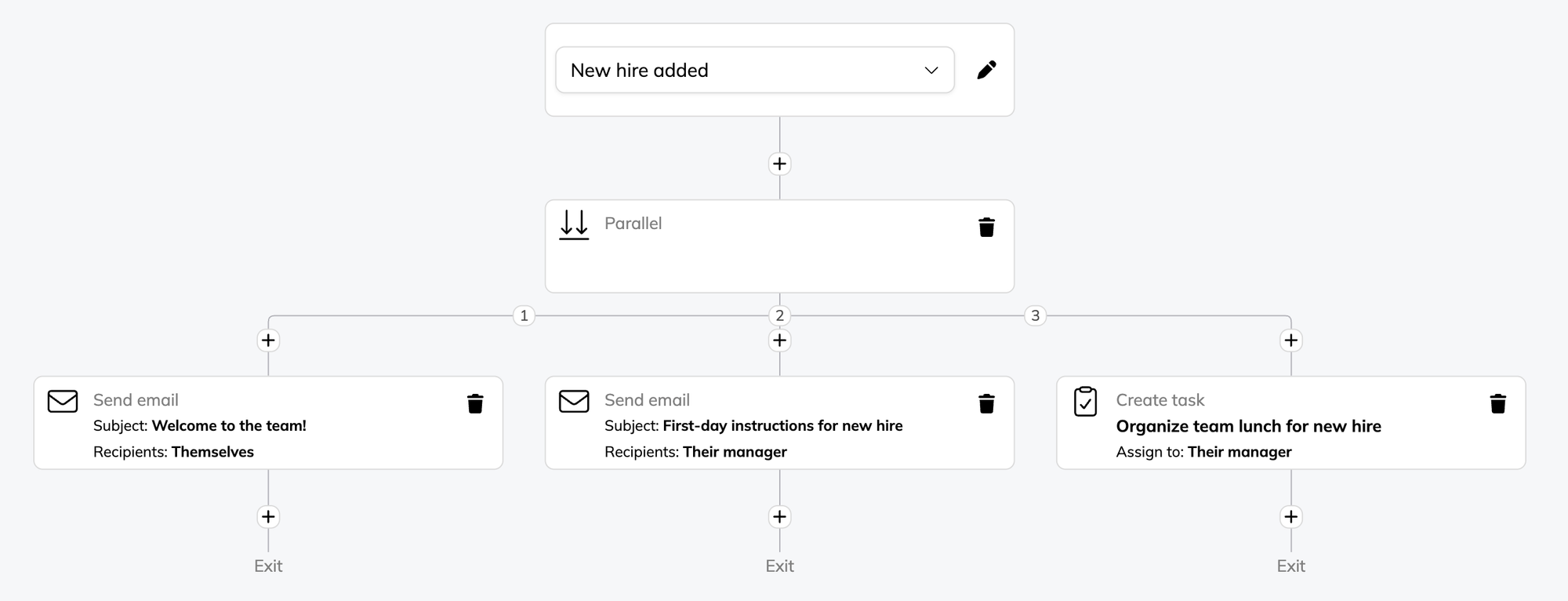
Alternatively, describe the workflow in plain language and AI builds it. For example:
"When a new hire is added, send them a welcome email with first-day instructions 5 days before their hire date, and assign onboarding training due 7 days later."
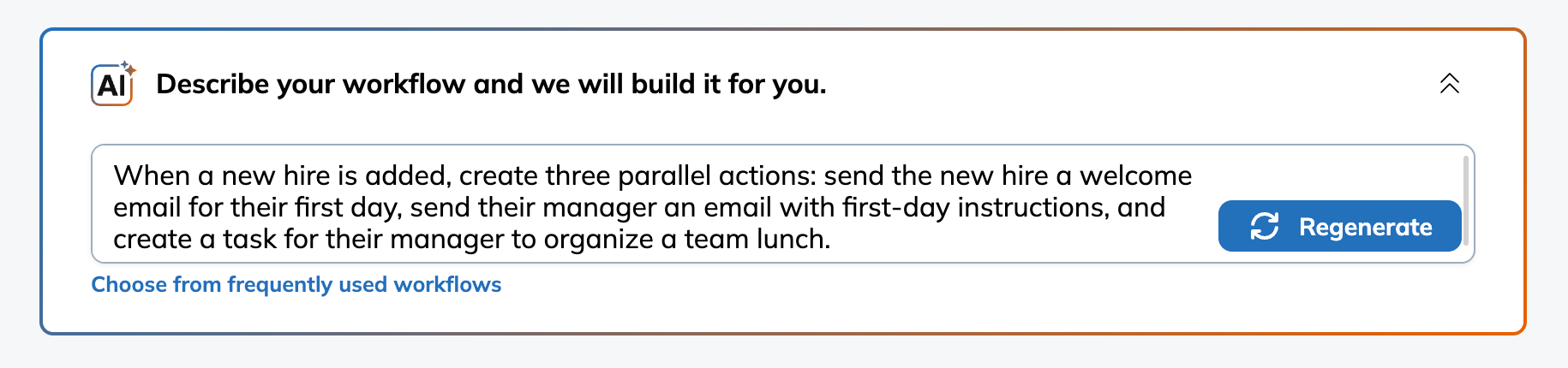
This produces a complete workflow you can then edit — adjust timing, add actions, insert a branch. There's also a set of frequently used templates to start from. A practical approach: generate the first version with AI, refine it manually.
Workflows can be saved as drafts and published when ready, as only published workflows run. And neither method requires technical setup or anyone from IT.
Five configurations to copy
Below are five common workflows with their full setup. The timings mentioned are sensible defaults, not rules, so adjust them to how your company works.
1. New hire onboarding
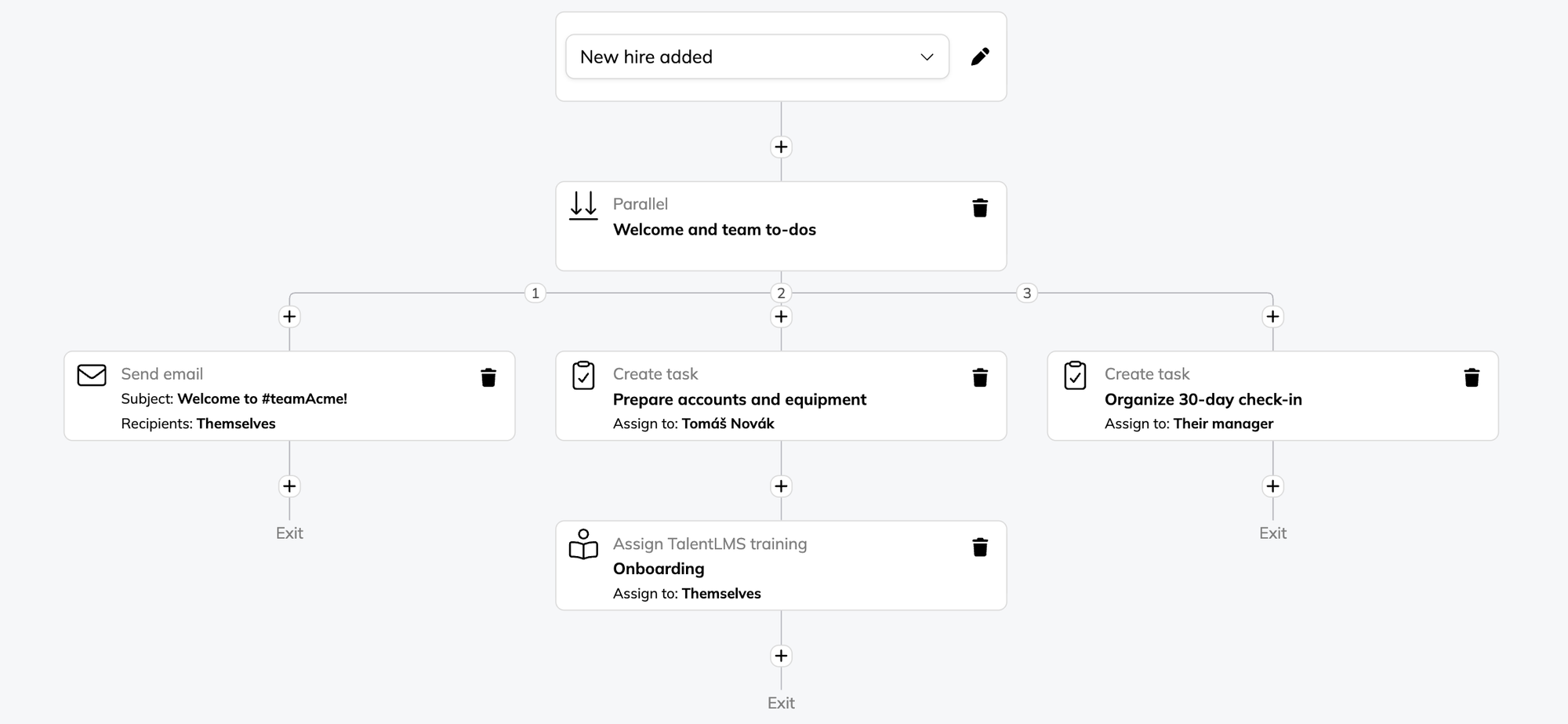
Trigger: New hire added Scope: Company-wide (or one per location if onboarding differs)
| Action | Assigned to / recipient | Scheduling |
|---|---|---|
| Send welcome email with first-day details | The employee | 5 days before hire date |
| Create task: prepare accounts and equipment (parallel with the email) | Whoever handles IT | Due 1 day before hire date — block next action until completed |
| Assign onboarding course in TalentLMS | The employee | Due 7 days after hire date, reminder 2 days before due |
| Create task: schedule 30-day check-in | The employee's manager | Due 30 days after hire date, alert 3 days before due |
Everything here is scheduled against the hire date, not the trigger date — so the workflow behaves identically whether you add the hire a week or three months ahead. The blocking on the IT task means nothing moves forward until the accounts actually exist. And the 30-day check-in is worth keeping even if you trim everything else: in a manual process it's the step most likely to be skipped, because by day 25 the hire no longer feels "new".
2. Offboarding
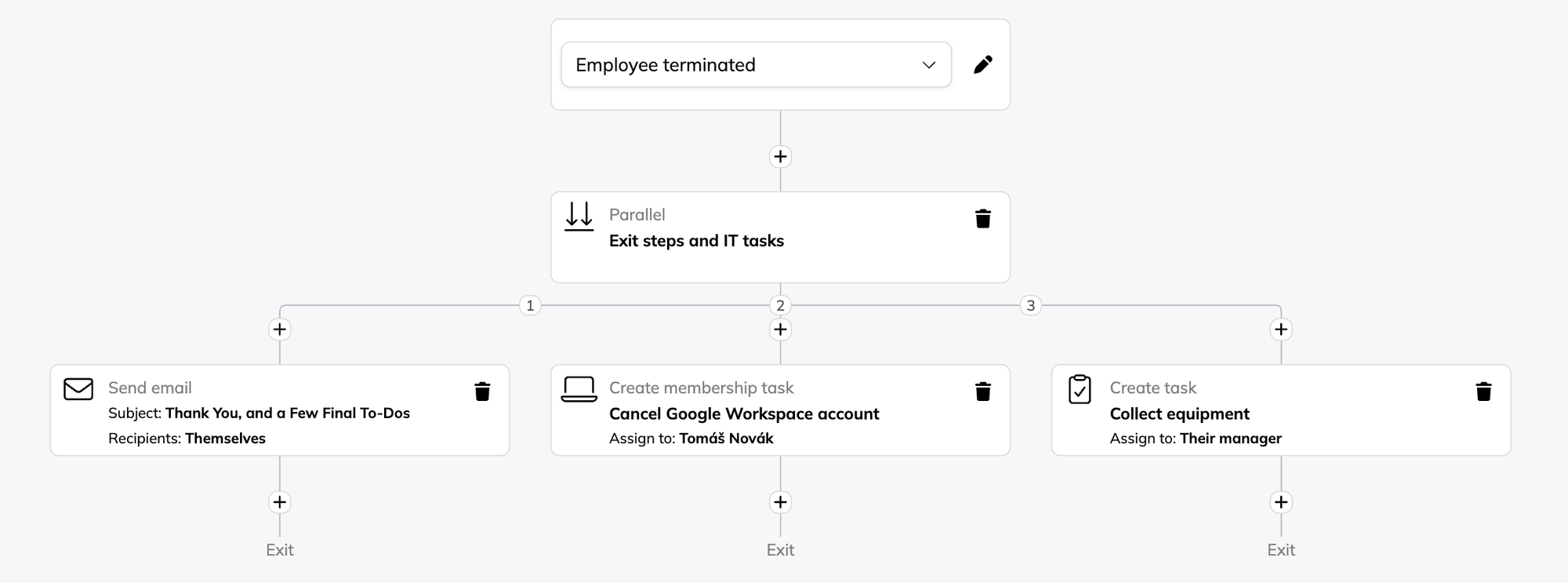
Trigger: Employee terminated Scope: Company-wide
| Action | Assigned to / recipient | Scheduling |
|---|---|---|
| Send email with exit information and final steps | The employee | On trigger date |
| Create task: collect equipment | The employee's manager | Due on termination date |
| Create membership task: cancel Google Workspace account | Whoever manages subscriptions | Due on termination date |
The blocking rule is the whole point here: offboarding doesn't proceed until the equipment is actually back. And the membership task covers the step manual offboarding forgets most reliably: the one that keeps billing you.
3. Certification renewal
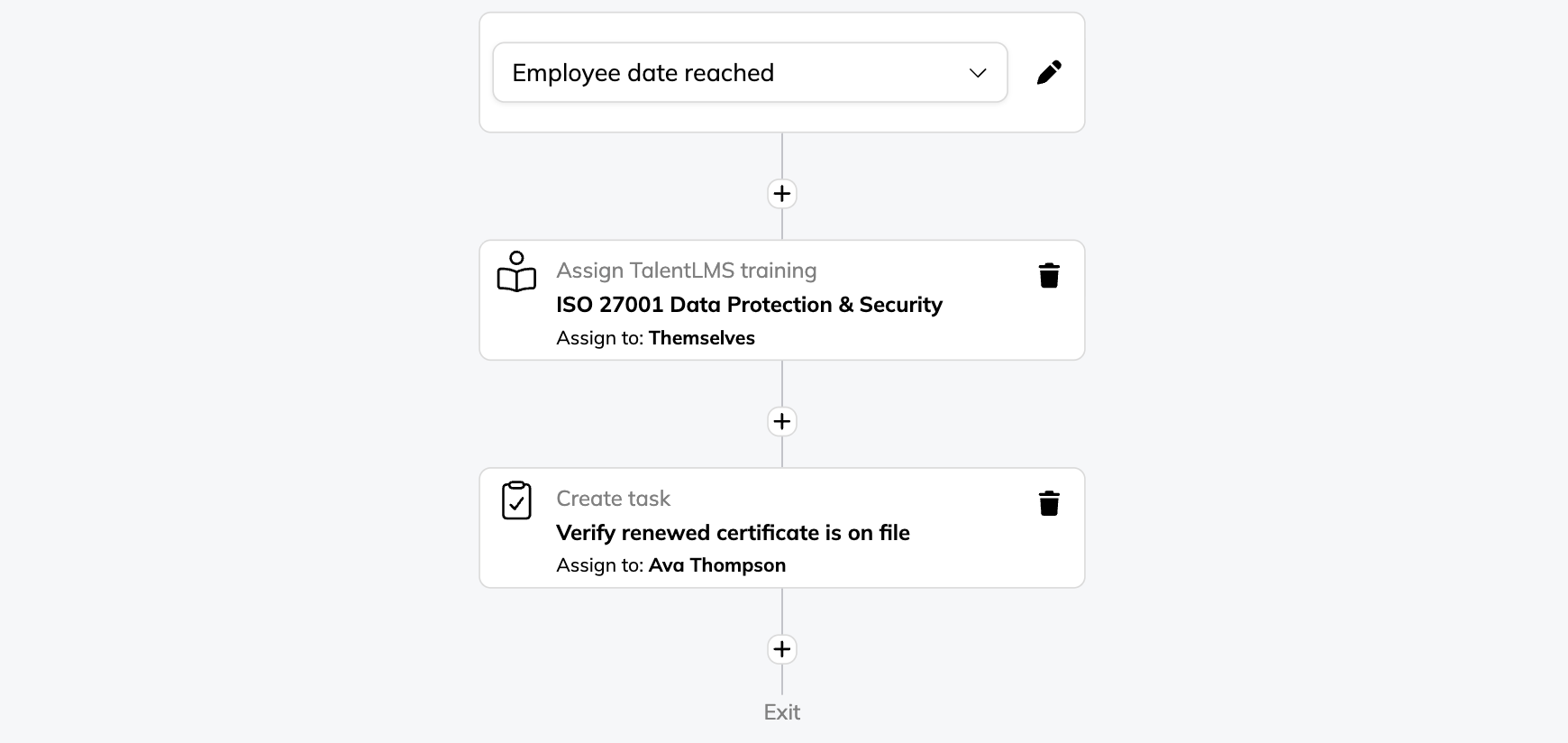
Trigger: Employee date reached — the renewal deadline stored on the profile Scope: The department or job title the certification applies to
| Action | Assigned to / recipient | Scheduling |
|---|---|---|
| Assign refresher course in TalentLMS | The employee | Due 5 days before the certification expires, reminder 2 days before due |
| Create task: verify renewed certificate is on file | HR | Due on the expiry date |
The workflow runs per employee, against their individual expiry date. The employee gets their refresher course assigned with a due date ahead of the expiry and a reminder before that, and HR gets a task on the expiry date itself to confirm the renewed certificate is on file. Once the dates are stored on the profiles, renewals start themselves. There's no list to monitor and no one to chase.
4. Birthdays and work anniversaries
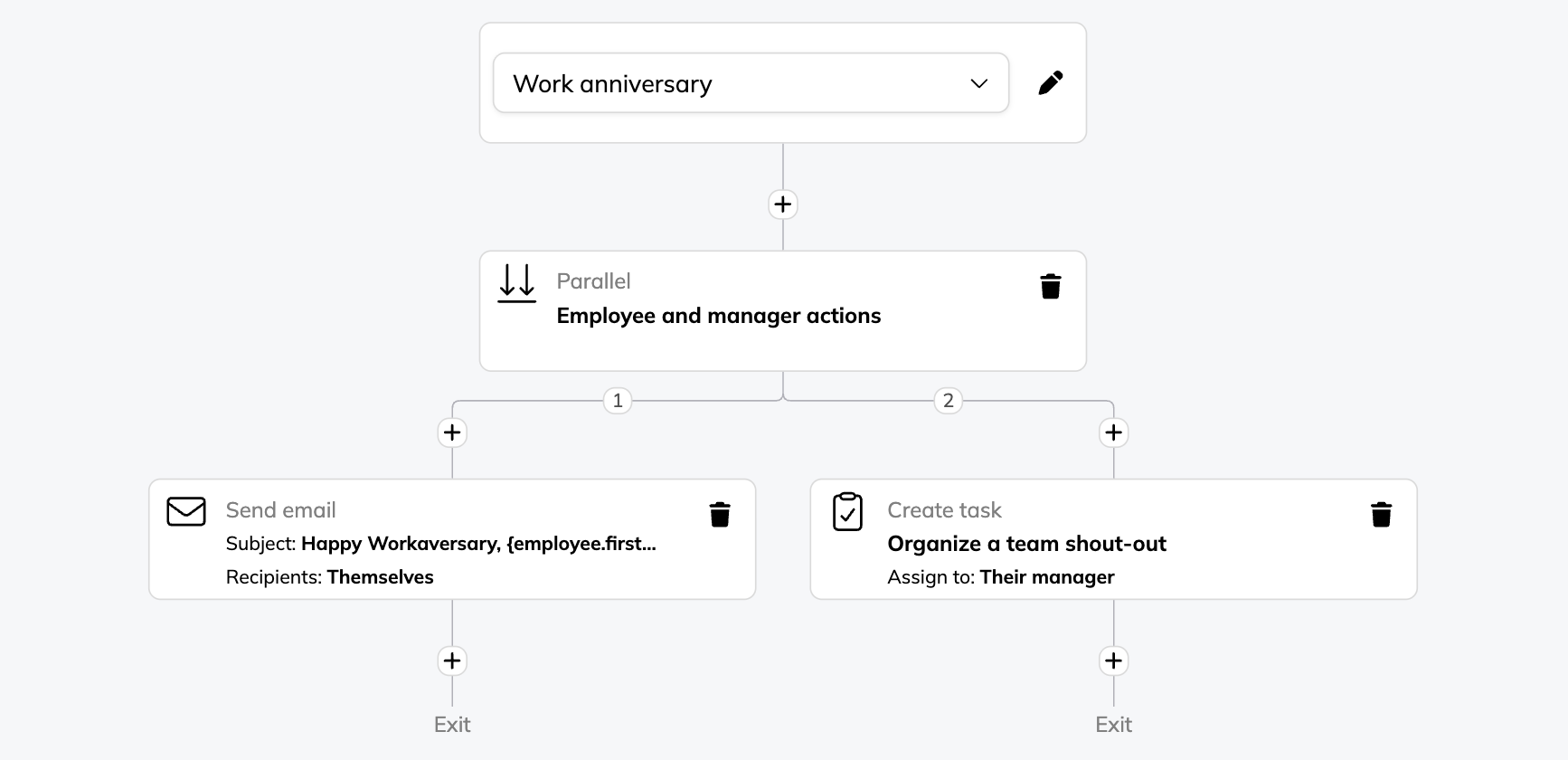
Trigger: Birthday (build a second workflow with the work anniversary trigger) Scope: Company-wide
| Action | Assigned to / recipient | Scheduling |
|---|---|---|
| Create task: organize a team shout-out | The employee's manager | Due on trigger date, alert 2 days before |
Send celebration email using {employee.first_name} | The employee | On trigger date |
The early alert on the manager task is the point of this workflow. An automated email on the day is easy; giving the manager a two-day head start to do something special is what makes it land.
5. One welcome workflow for two types of hires
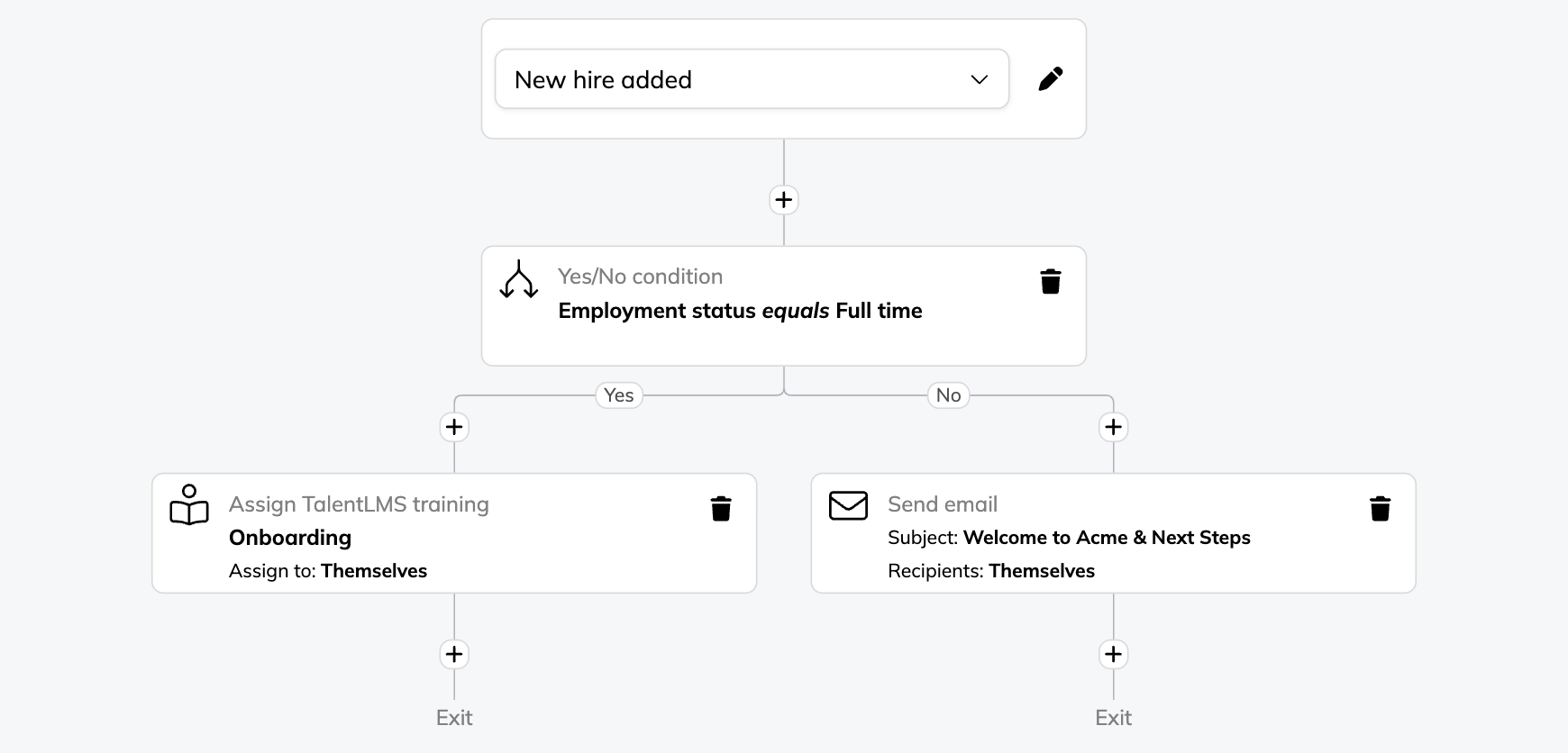
Trigger: New hire added Scope: Company-wide
| Action | Assigned to / recipient | Scheduling |
|---|---|---|
| Yes/No condition: is the employee full-time? | — | — |
| → Yes: assign full onboarding course in TalentLMS | The employee | Due 5 days after hire date |
| → No: send a short intro email with the essentials | The employee | Due 1 day before hire date |
This is the yes/no condition doing its job. Full-timers and part-timers or contractors rarely need the same onboarding — but without branching, that means two separate workflows to keep in sync. With it, one workflow checks the employment status and sends each hire down the right path. One thing to maintain instead of two.
Practical notes
A few things to keep in mind as you build:
- Test with one or two profiles first. Scope a new workflow to a couple of employees, publish it, watch it run, then widen the scope. Much better than debugging in front of the whole company.
- Pick the right reference date. The offsets are the feature — but only if they hang off the date that matches the real-world process. Onboarding actions usually belong on the hire date, not the trigger date; reminders belong on due dates.
- Date triggers need the data. Employee-date workflows only fire if the date exists on the profile. Adding certification or probation workflows? Create and fill those custom fields for existing employees first.
- Review what's running. Processes change. Check your active workflows every few months and retire or update the ones that no longer match reality.
Getting started
If you're new to Workflows, build the onboarding one first — it's the highest-volume repetitive process for most small HR teams, and it exercises every part of the feature: hire-date scheduling, parallel actions, blocking, and reminders. Once that's running, the others take minutes.
Sign up for free or log in to TalentHR, open Workflows, and either lay out your first one step by step or type a sentence and let AI assemble it. Set the timing, assign the owners, publish it... and it runs.